1
Become a host
Same sign-up as a guest, with an extra agreement and an approval step.
Register through the Sign up pop-up in the top-right of any page. Alongside the Terms and
Privacy Policy you also accept the Host Agreement,
which sets out your obligations for the vehicles you list.
- Complete registration and verify your email with the one-time code we send you.
- Wait for admin approval. Host accounts are reviewed before they go live; you will get an
email when yours is approved.
- Complete identity verification if prompted — licence or passport plus a selfie,
handled by Stripe Identity.
You can be both. A host account can also rent vehicles from other hosts. Your sidebar
carries both sets of tools: hosting under Listing, Bookings and Earning, and
your own rentals under My Area.
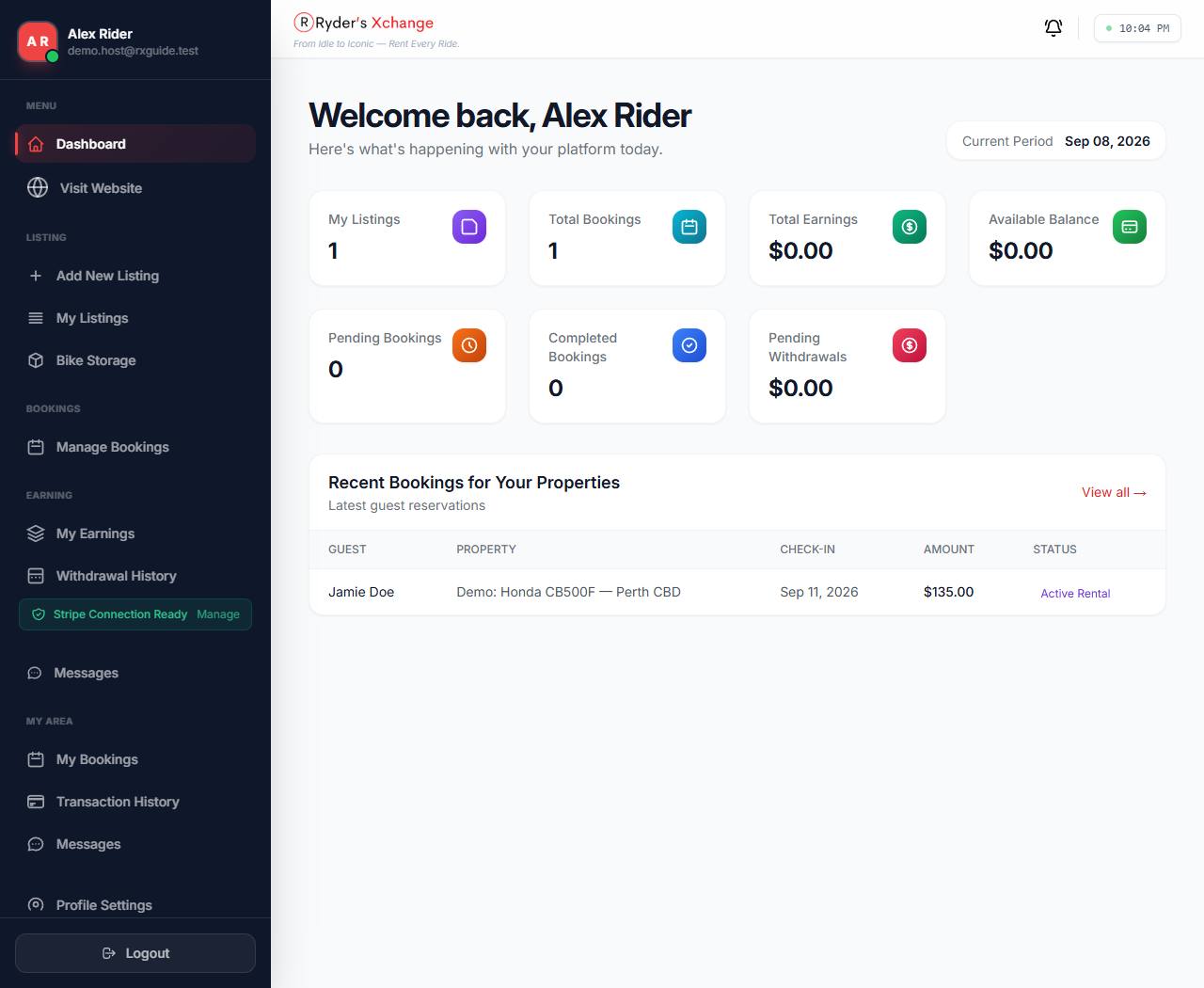 Your dashboard Listings, bookings, earnings and balance up top; the sidebar carries every tool in this guide.
2
Connect Stripe
Do this before you list. Without it, you cannot be paid.
Payouts run through Stripe Connect. From your dashboard sidebar, select Manage beside
the Stripe status badge and complete Stripe’s onboarding: business or individual details,
identity documents, and the bank account you want money paid into.
When it is finished the sidebar badge reads Stripe Connection Ready. Until it does, guests
may be unable to complete a booking on your vehicle, and any money owed cannot be transferred to
you.
Ryder’s Xchange never sees or stores your bank details or a renter’s card number
— both sit with Stripe. You can return to Manage at any time to update your payout
account.
3
Create a listing
One long form, grouped into sections. You can save and come back.
Choose Add New Listing in the sidebar. The form walks through the vehicle, where it is, what
it costs, and the paperwork that proves it is roadworthy.
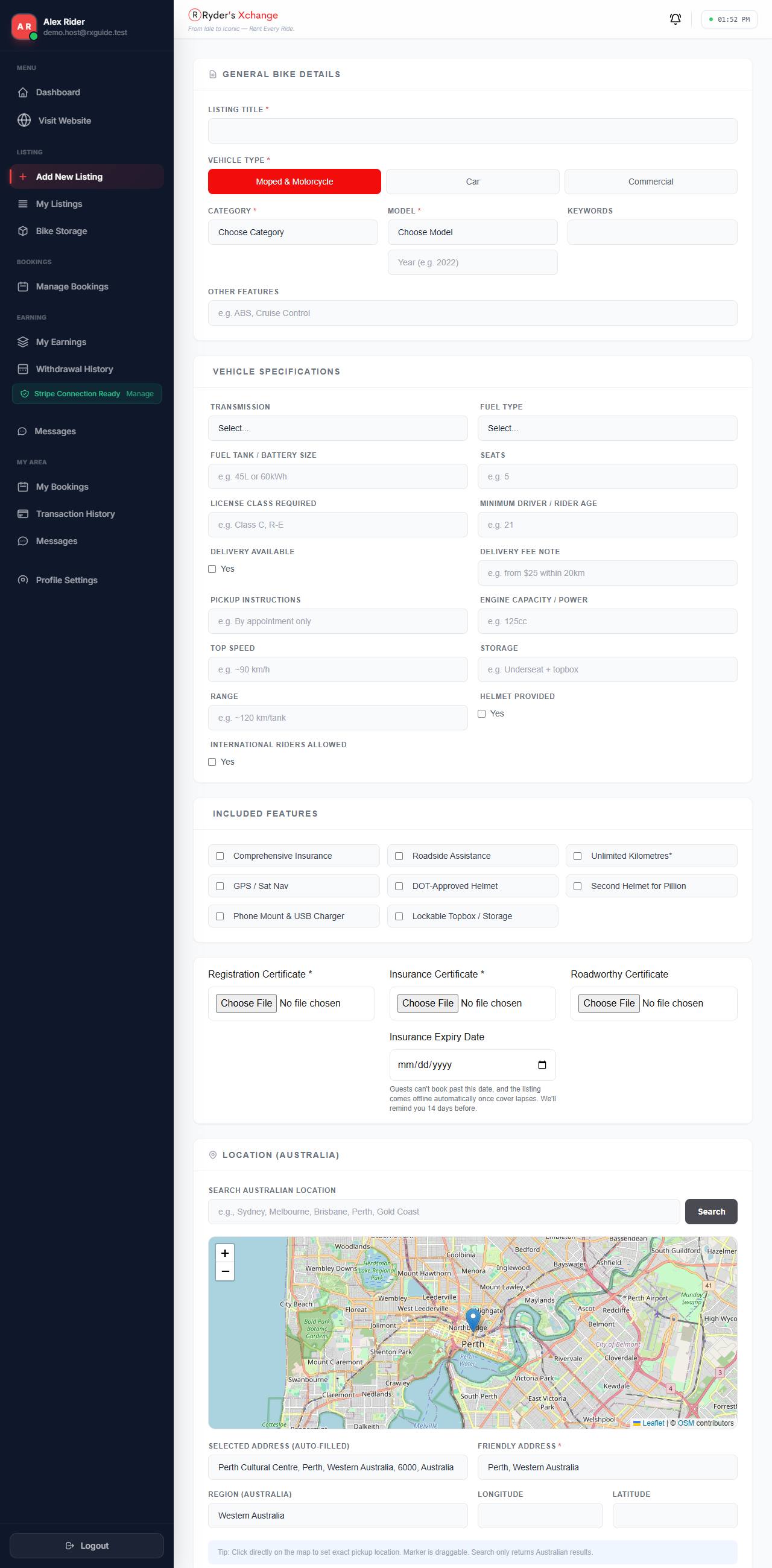 Add new listing The form opens on general details, then continues through specs, location, photos and pricing.
What each section asks for
| Section | What goes in it |
|---|
| General details | Title, vehicle type (Moped & Motorcycle, Car or Commercial), category, model and year, keywords, notable features. |
| Specifications | Transmission, fuel type, tank or battery size, seats, licence class required, minimum rider age. |
| Location | Pickup address and region. This drives where the vehicle appears in search. |
| Photos | Gallery images. These are the first thing a renter sees — use clear, well-lit shots of the actual vehicle. |
| Description | Free text. Say what the bike is good for, what is included, and anything a rider must know. |
| Pricing | Daily rate, optional weekend rate, minimum days, deposit percentage, security bond amount. |
| Discounts | Optional long-stay rates at 30, 60 and 90 days, and short-rent rates at 3, 7 and 14 days. |
| Extra services | Optional paid add-ons — delivery, gear, anything you offer alongside the vehicle. |
| Availability | Dates to block out. Guests cannot select or book a blocked date, and booked dates are blocked automatically. |
| Compliance documents | Registration, insurance and roadworthy certificates, plus your insurance expiry date. Each is verified before the listing goes live — see Keeping insurance current. |
Your deposit percentage has a floor. The platform’s own commission has to be
collectable at booking time, so a deposit below 20% is lifted to 20%. Setting it higher is
allowed — that simply means more of your own money reaches you at booking rather than at
pickup.
4
Get it approved
Listings are reviewed before they appear publicly.
A new listing is saved as Pending while an administrator checks the details and your
compliance documents. Once approved it becomes Active and is bookable.
If it is rejected you are given a reason. Fix what was flagged on the listing and use Resubmit
from My Listings to send it back for review — you do not need to start a new listing.
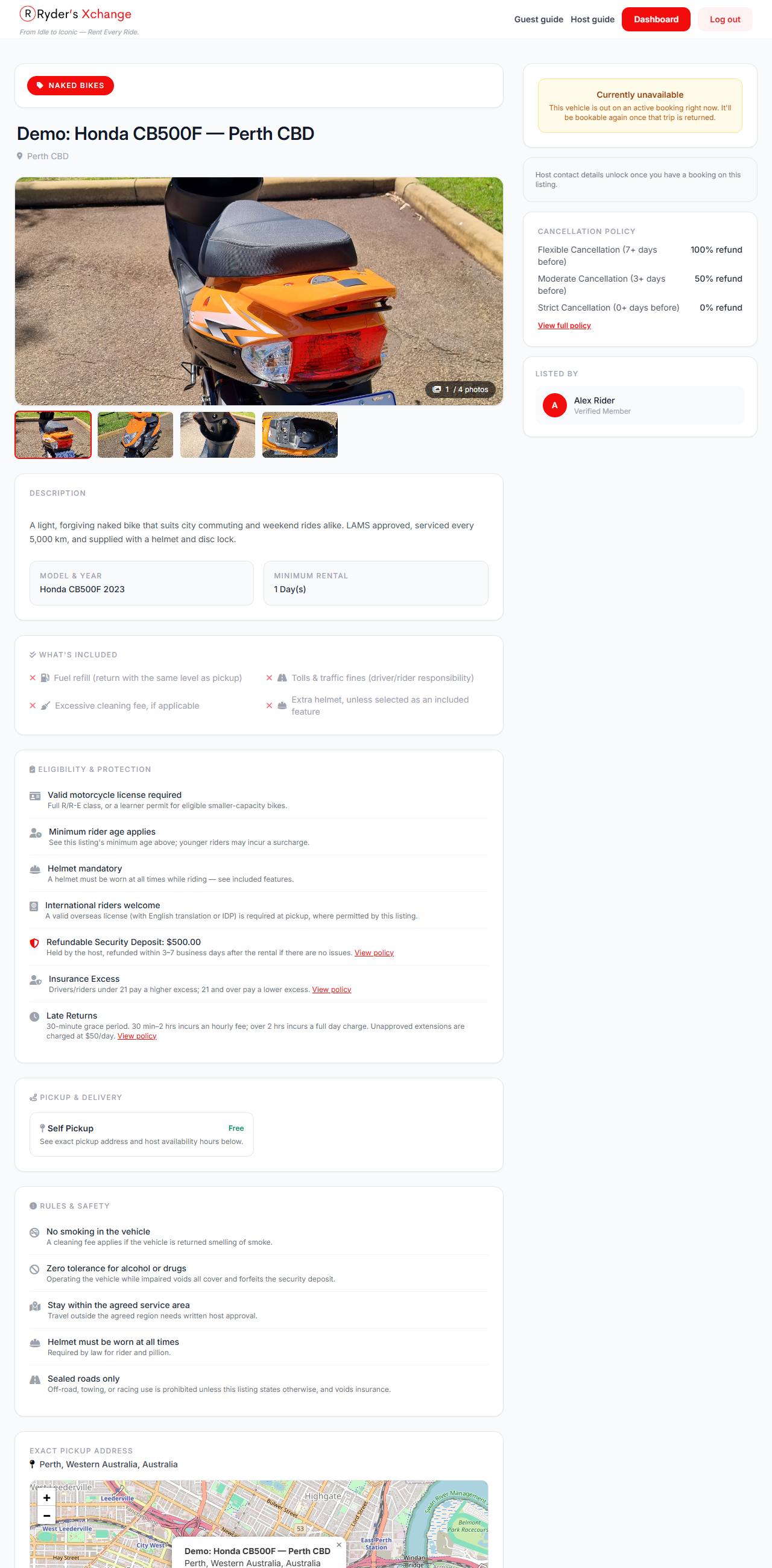 The renter’s view How your listing looks publicly once approved.
5
Manage your listings
Everything you have listed, grouped by state.
My Listings groups your vehicles into tabs by status so you can see at a glance what is live,
what is waiting on review, and what has lapsed. Open any listing to view its details, or edit it to
change pricing, availability, photos or description.
Editing a live listing does not cancel bookings already made against it. Existing bookings keep the
price and terms that applied when they were made.
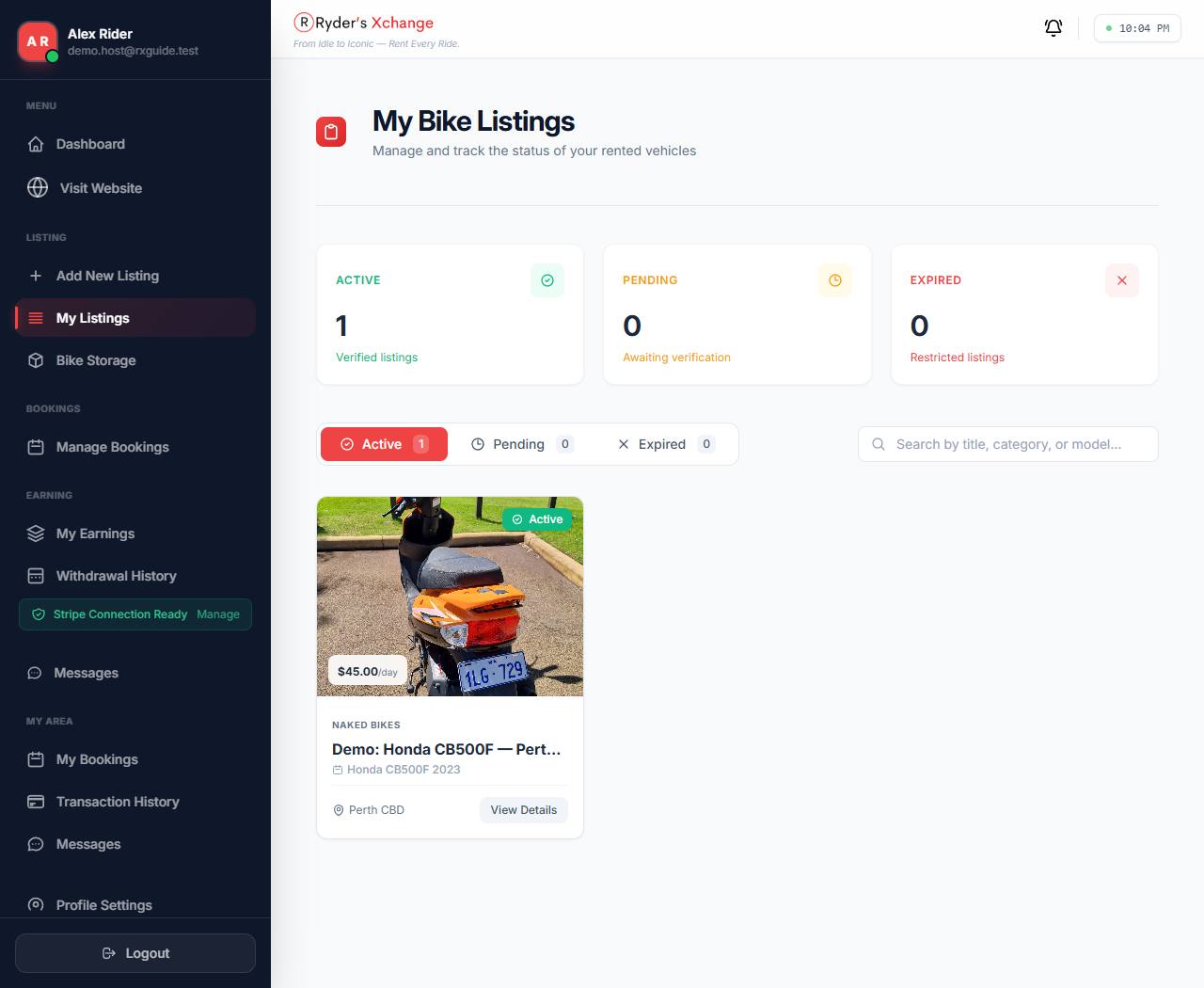 My listings Active, pending and expired vehicles, each with its own actions.
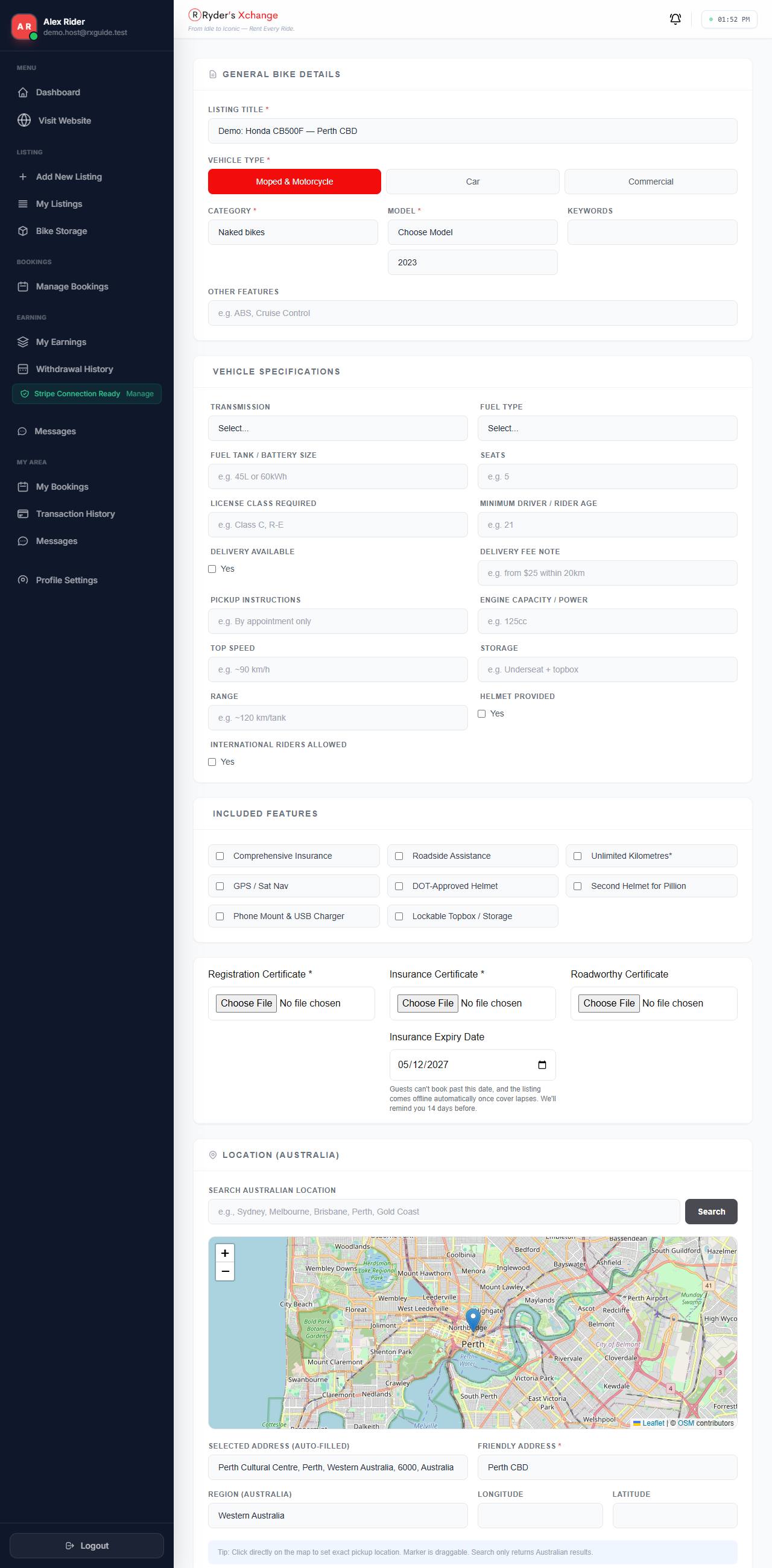 Editing The same form as creation, pre-filled with the current details.
6
Handle a booking
Booking is instant — there is no accept or decline step.
When a guest books, they pay a deposit immediately and the dates are locked. You are not asked to
approve it. Your job starts at handover, and you drive the booking along using the buttons on
Manage Bookings.
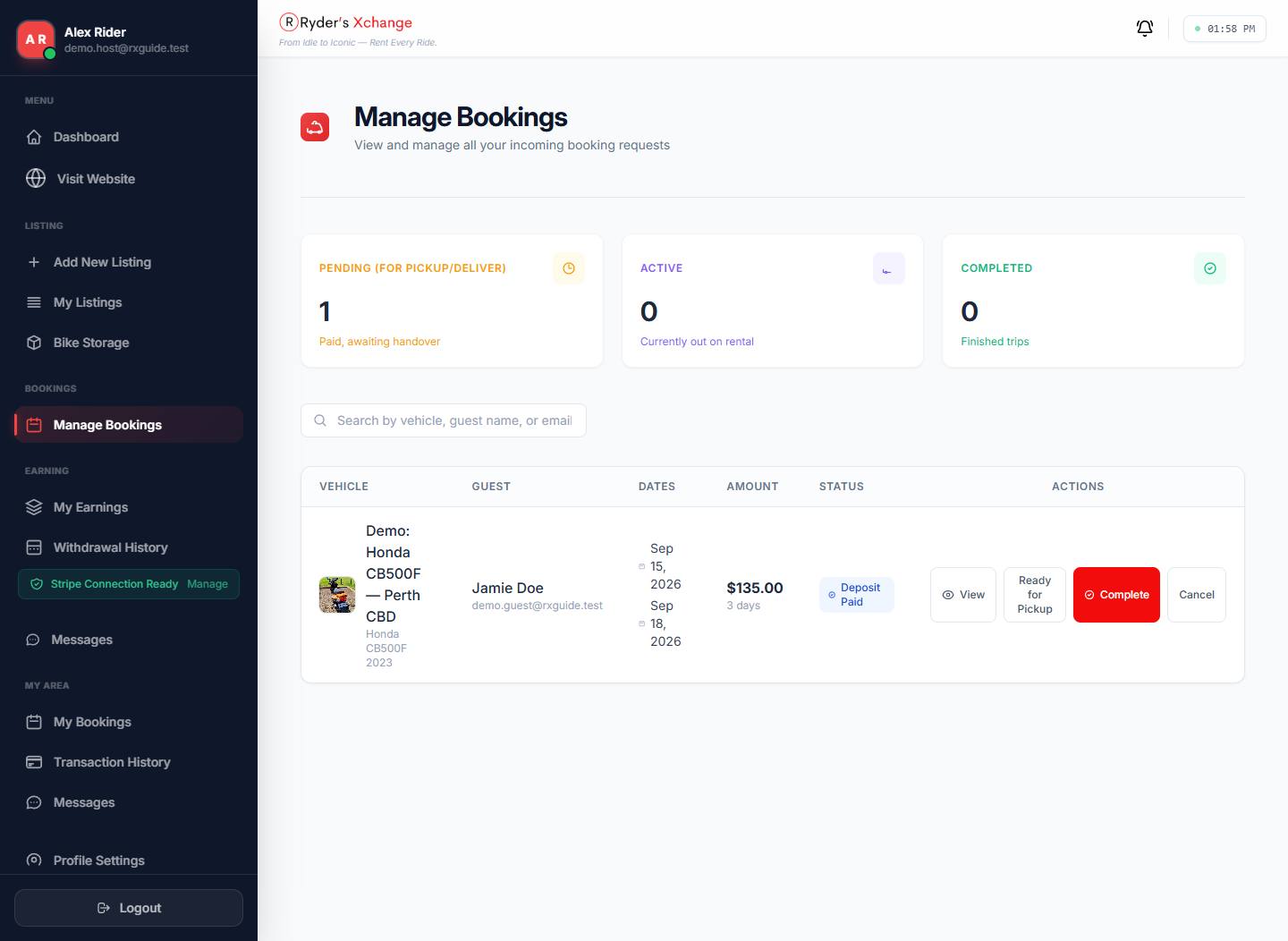 Manage bookings Counts across the top, then each booking with the action that moves it forward.
The rental lifecycle
Each status below is a button you press when the real-world thing happens. The action you take is
shown in red.
Deposit Paid
The guest has paid and the dates are yours to honour. Their balance is authorised but not yet taken. Prepare the vehicle, then Mark Ready for Pickup.
Ready for Pickup
The vehicle is prepared and waiting. When the guest collects it, Start Rental.
Active Rental
The guest has the vehicle and the balance is captured. When it comes back, Mark Returned.
Returned
The vehicle is back and you are checking it over. If all is well, Complete the booking.
Completed
Trip closed, the bond hold is released, and your earnings for the trip are recorded.
The granular steps are optional. If you prefer to keep it simple you can complete a booking
straight from Deposit Paid without stepping through pickup, active and returned. The steps
exist so both sides can see exactly where a rental has got to.
Always check the guest’s driver’s licence at handover,
and confirm they have the card they booked with.
7
The security bond
A hold on the guest’s card, and how to claim against it.
The bond amount you set on a listing is authorised against the guest’s card around
pickup — held, not charged. When you complete a clean booking, the hold is released and the
guest is never billed for it.
Claiming for damage
If the vehicle comes back damaged, or there is another breach, open the booking and submit a
bond claim. State the amount you are claiming and the reason. The claim is reviewed by an
administrator rather than taken automatically, and the guest is notified.
Photograph the vehicle at handover and on return. A dated photo record is the difference between a
claim that is upheld and one that is not.
8
Earnings and fees
What the platform keeps, and how to keep less of it.
Ryder’s Xchange takes a 20% platform fee on the trip total. You receive the rest. The
fee is fixed for a trip at the moment it is booked, so a later change to your tier never re-prices
a trip already under way.
Membership tiers reduce the fee
List more vehicles and complete more trips and your fee falls. Tiers are worked out from your active
vehicle count and your qualifying completed trips:
| Tier | Vehicles | Trips | Fee discount | You pay |
|---|
| Standard | 1–2 | 0 | — | 20.0% |
| Silver | 3–5 | 3 | 2.5 | 17.5% |
| Gold | 6–8 | 6 | 5.0 | 15.0% |
| Platinum | 9+ | 9 | 7.5 | 12.5% |
Your current tier, your active vehicle count and your progress toward the
next tier are all shown on My Earnings, along with your total earnings and available
balance.
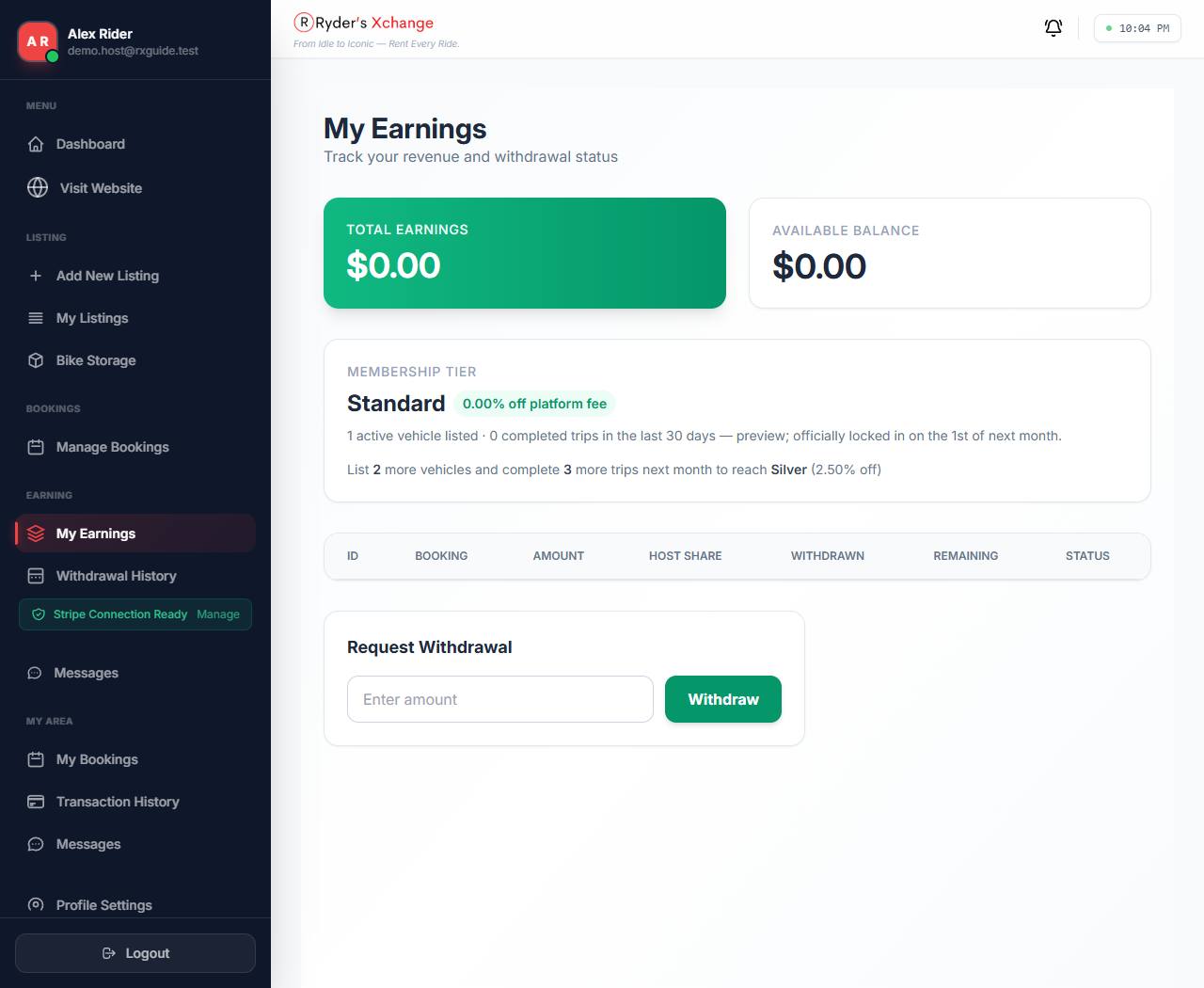 My earnings Total earned, what is available to withdraw, and your membership tier.
9
Get paid out
Requesting money, and tracking the request.
Your available balance is what you have earned from completed trips, less anything already
withdrawn. From My Earnings, request a withdrawal for any amount up to that balance.
- Check your available balance on My Earnings.
- Request a withdrawal. It is submitted for review, not paid instantly.
- An administrator approves or rejects it. Approved requests are transferred to the bank account
on your Stripe Connect profile.
- Track the outcome under Withdrawal History.
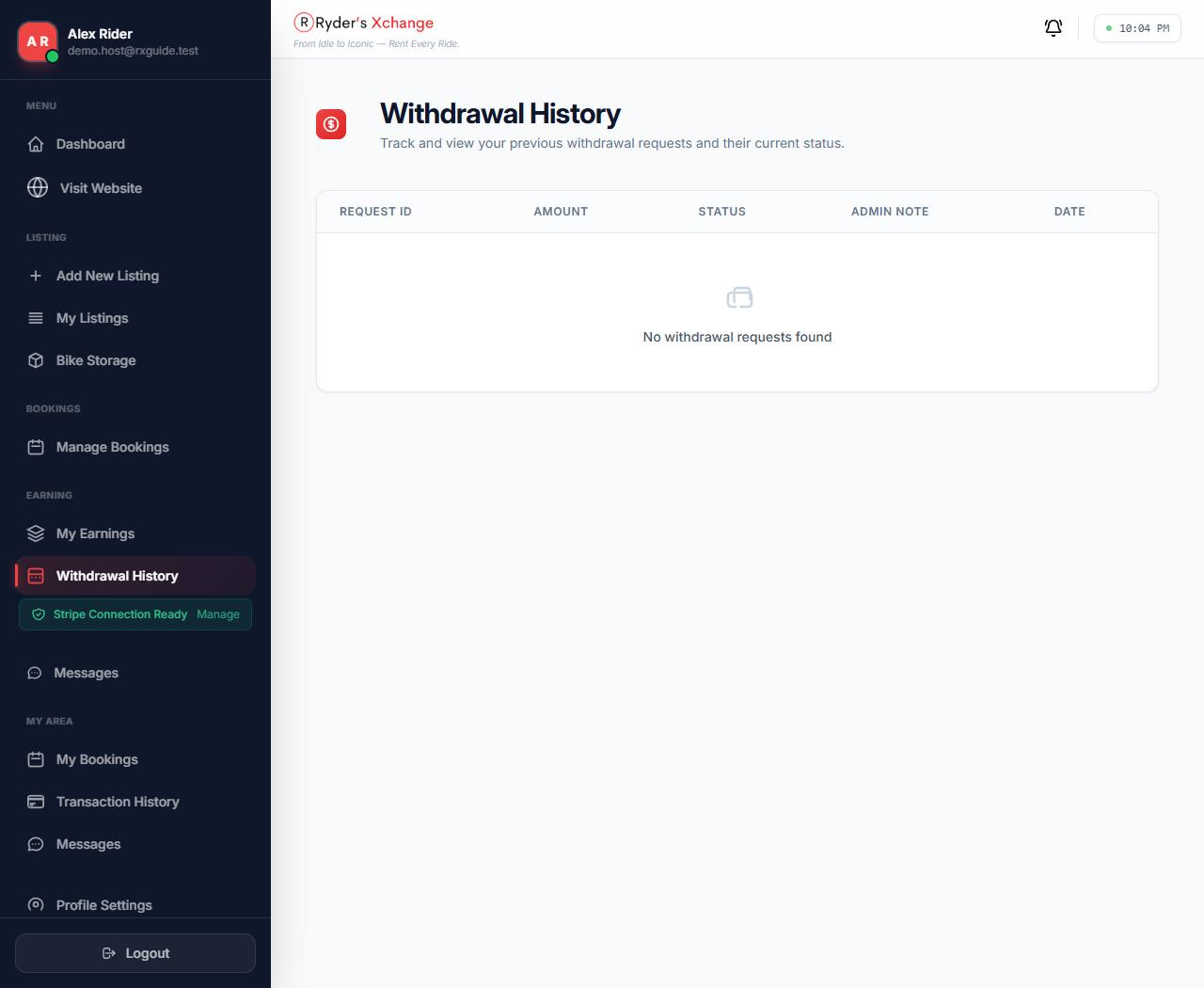 Withdrawal history Every request you have made, with its status.
A guest can cancel while a booking is Awaiting Payment, Deposit Paid or
Ready for Pickup. What they get back depends on how far ahead they cancel — 100% at
seven or more days, 50% at three to six days, nothing inside three days. The full terms are on the
Cancellation Policy page.
Cancelling a booking yourself
Open Manage Bookings and use Cancel at the end of the booking’s row — or
open View and use Cancel Booking at the bottom of the dialog, which is easier on a
narrow screen. Either way you are asked for a reason, which is required and must be at least ten
characters. The guest sees exactly what you write, so give them something useful:
“Insurance does not start until 1 October” rather than “unavailable”.
- Sidebar → Manage Bookings.
- Cancel on the booking’s row, or View → Cancel Booking.
- Type the reason and choose Confirm Cancel.
The guest is refunded in full. The cancellation tiers above exist to protect you from a
guest walking away at the last minute — they never apply when you cancel. Whatever
the timing, the guest gets everything back, no cancellation fee is kept, the outstanding balance
hold is released rather than charged, and the security bond hold is released too. Their
notification reads “Full refund (cancelled by the host)”.
Do this sparingly all the same: a cancelled booking is a guest who has
arranged their trip around your vehicle.
Cancel only appears while the booking can still be cancelled — Awaiting Payment,
Deposit Paid or Ready for Pickup. Once the vehicle has been handed over it is too late: problems
from that point are handled as a dispute, which pauses the booking while an administrator
reviews it. Either side can raise one.
Keeping insurance current
When you upload your certificate of insurance you also set an insurance expiry date. That
date is what keeps an uninsured vehicle off the road, in three ways:
- Guests cannot book past it. A trip that would end after your cover does is refused at
checkout, and so is an extension that would run past it.
- We remind you 14 days out, by email and in your notifications, so a renewal never
catches you by surprise.
- The listing comes offline the day after cover lapses. It moves to Expired,
disappears from search, and stops taking bookings.
To bring it back: upload the renewed certificate, set the new expiry date, and resubmit the listing
for review. You will find the reason it came down on the listing in My Listings.
If you leave the date blank, none of this applies. Listings without an expiry date on
record behave exactly as they always have — nothing warns you and nothing comes offline. If
your vehicle is insured, fill the date in; it is the only thing standing between a lapsed policy
and a guest riding away on an uninsured bike.
If cover is interrupted for some other reason — the bike is off the
road, or a policy starts later than you expected — block those dates on the listing. Blocked
dates now stop bookings outright.
Bike Storage is an optional paid service for hosts who would rather not keep a vehicle at
home. Open it from the sidebar to see the offer for a given listing, read the waiver, and opt in on
a subscription.
Active storage subscriptions are listed on the same page, and you can cancel a subscription from
there.
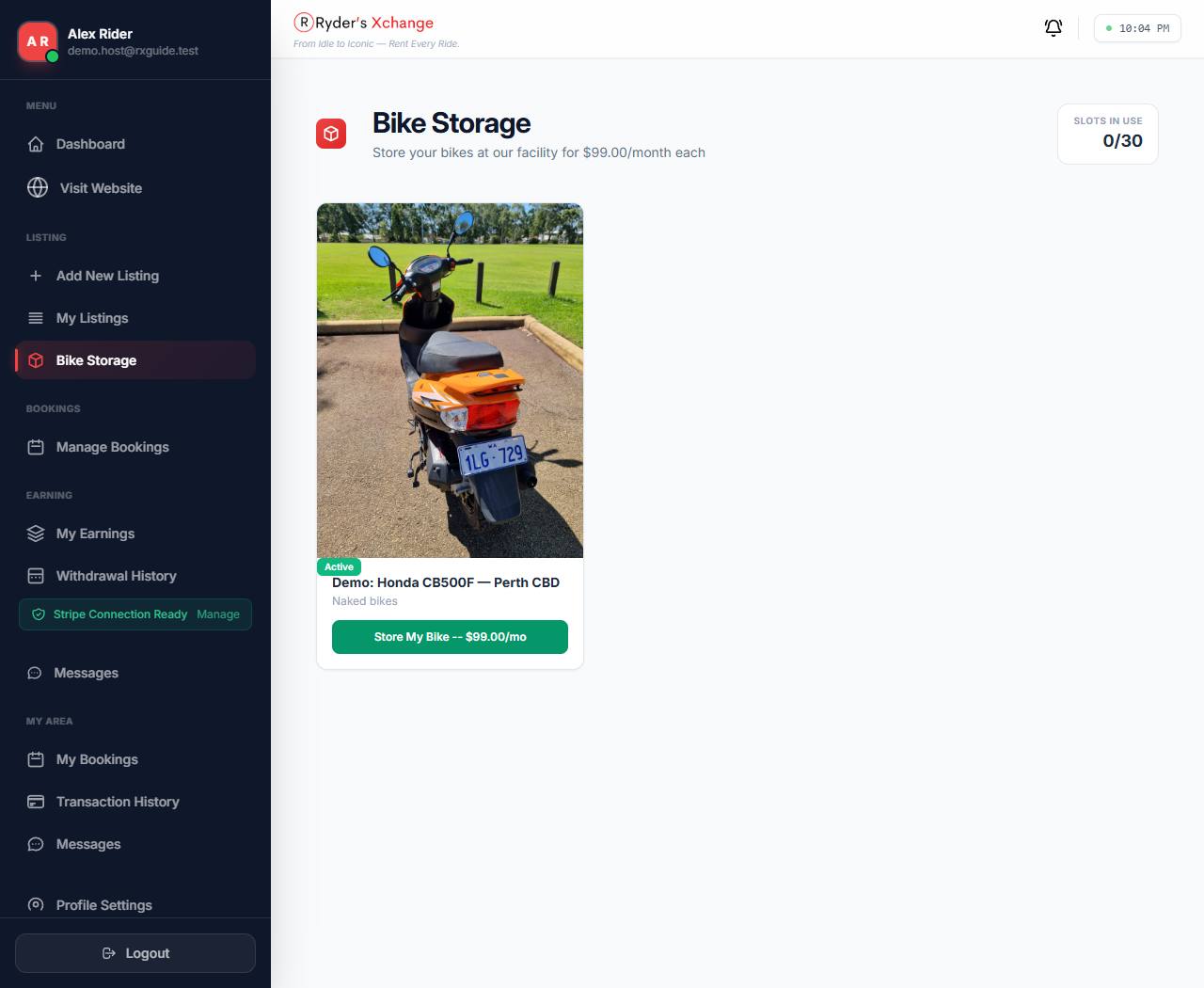 Bike storage Offers per vehicle, and any subscription you already hold.
Guests contact you from your listing, and each thread is tied to the vehicle it started from.
Threads appear under Messages, with unread replies badged and new messages also surfaced
under Notifications.
Answering quickly matters more than answering at length — most questions before a booking are
about pickup times and what is included.
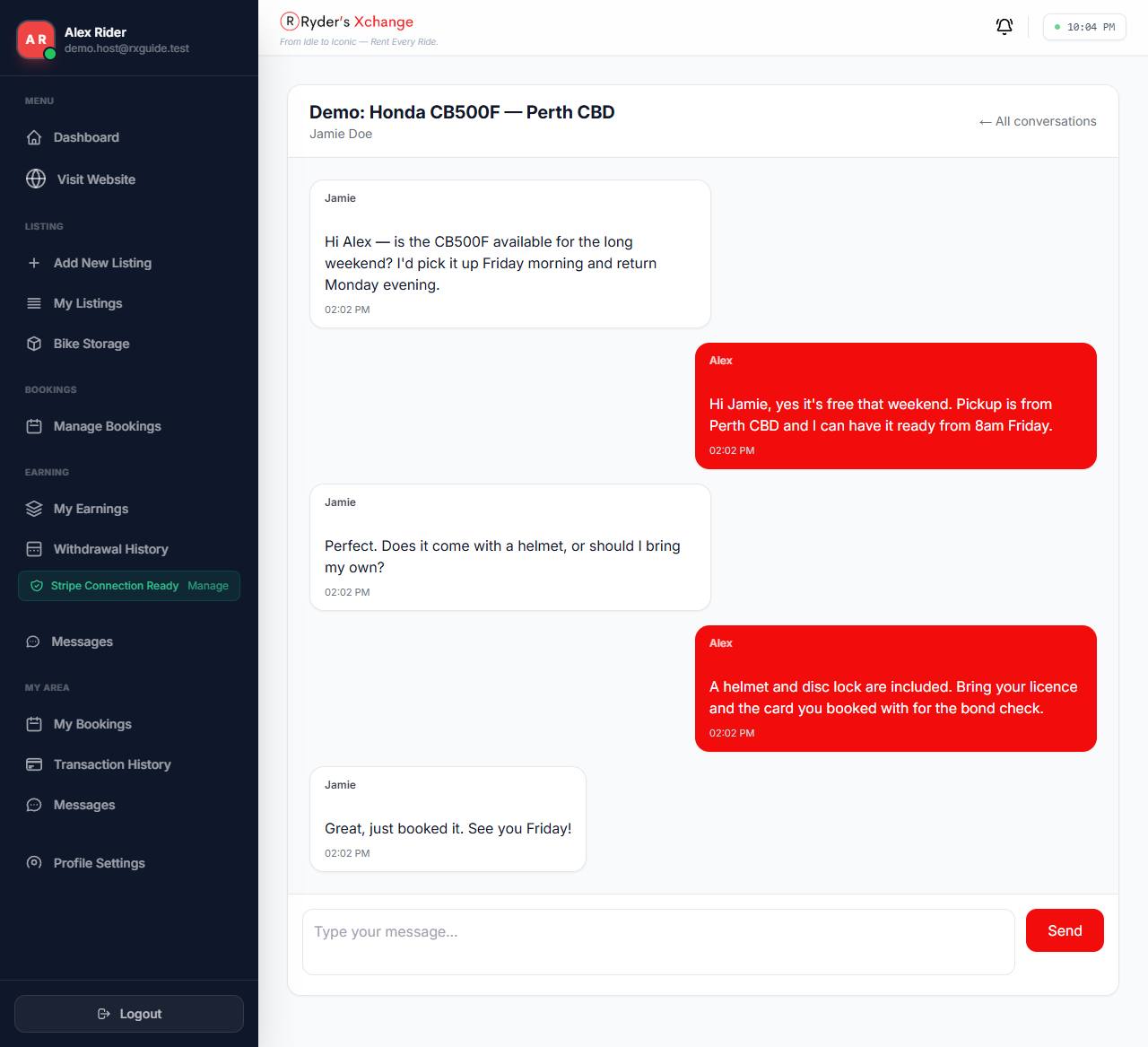 Message thread The guest’s side of the conversation, per vehicle.
Profile settings holds your name, contact details, profile photo and password. It is also
where you deactivate your account, which requires a one-time code sent to your email.
Deactivating does not tidy up bookings on its own. Settle anything outstanding — live rentals,
pending withdrawals — before you close an account.
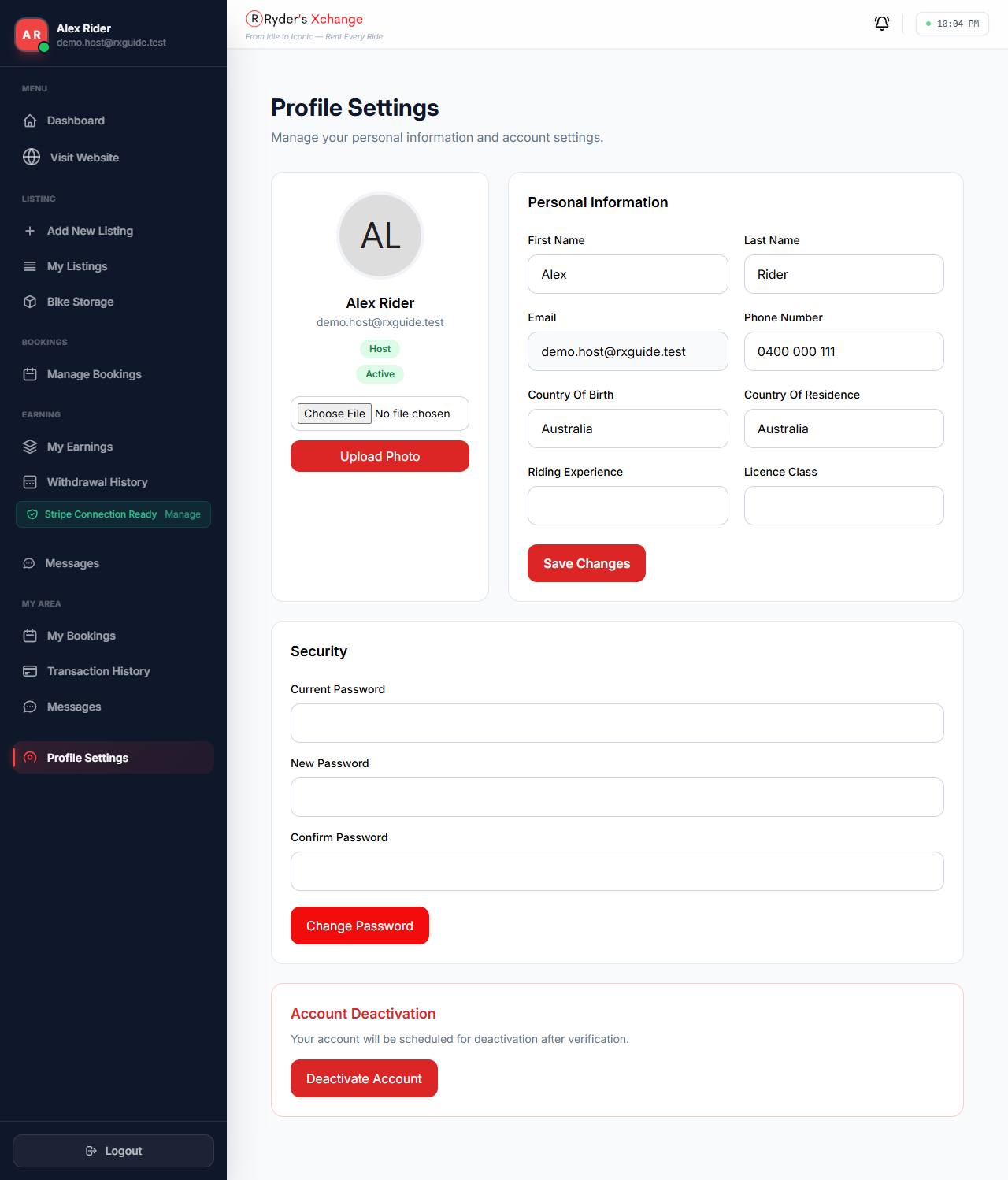 Profile settings Details, photo, password and deactivation.
Renting as well as hosting? The guest guide covers booking, payments and cancellations.
Read the guest guide