1
Create your account
Registration is a pop-up on the site — there is no separate sign-up page.
Select Sign up in the top-right corner of any page. The same pop-up handles both signing in
and registering; switch between the two using the tabs at the top.
- Fill in your name, email, phone number and date of birth, then choose a password.
- Accept the Terms & Conditions and Privacy Policy to continue.
- We email you a one-time verification code. Enter it on the next screen. If it does not
arrive within a minute, use Resend code.
- Your account then waits for admin approval. You will get an email once it is approved
— until then, signing in will tell you the account is still pending.
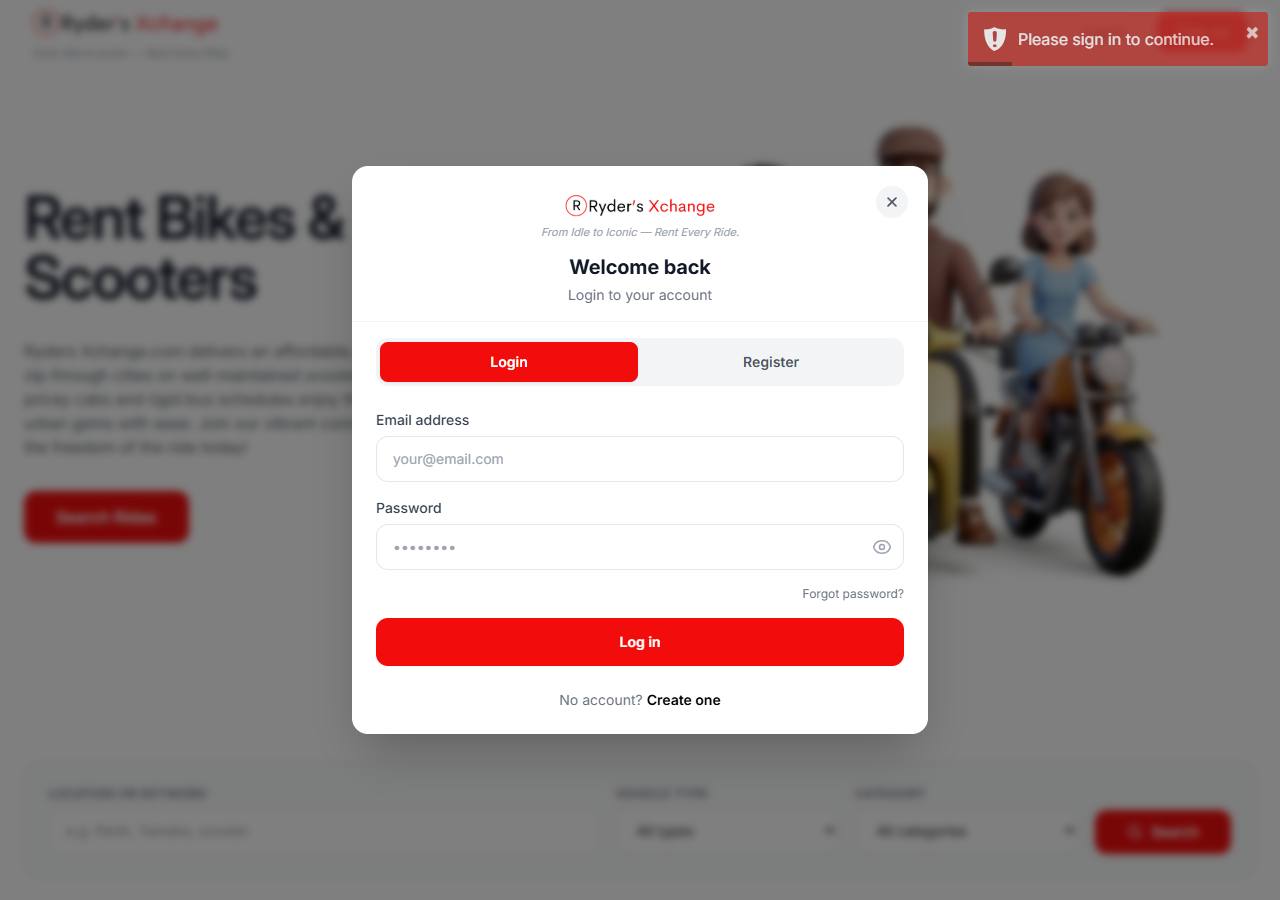 Sign in The pop-up opens over whichever page you were on, so you keep your place.
Verifying your identity
Because you are being trusted with someone else’s vehicle, you may be asked to complete an
identity check before your first booking. This is handled by Stripe Identity: you photograph
your licence or passport and take a selfie. You are returned to Ryder’s Xchange automatically
when it finishes.
Forgotten password? Choose Forgot password in the sign-in pop-up. We email you a
reset link that stays valid for a limited time; open it and set a new password.
2
Find a ride
Search from the home page, or browse the full catalogue.
The search panel on the home page filters on three things: a location or keyword, a
vehicle type (Moped & Motorcycle, Car, or Commercial), and a category such as
Scooters/Mopeds, Naked bikes, Sports bikes, Cruisers or Adventure.
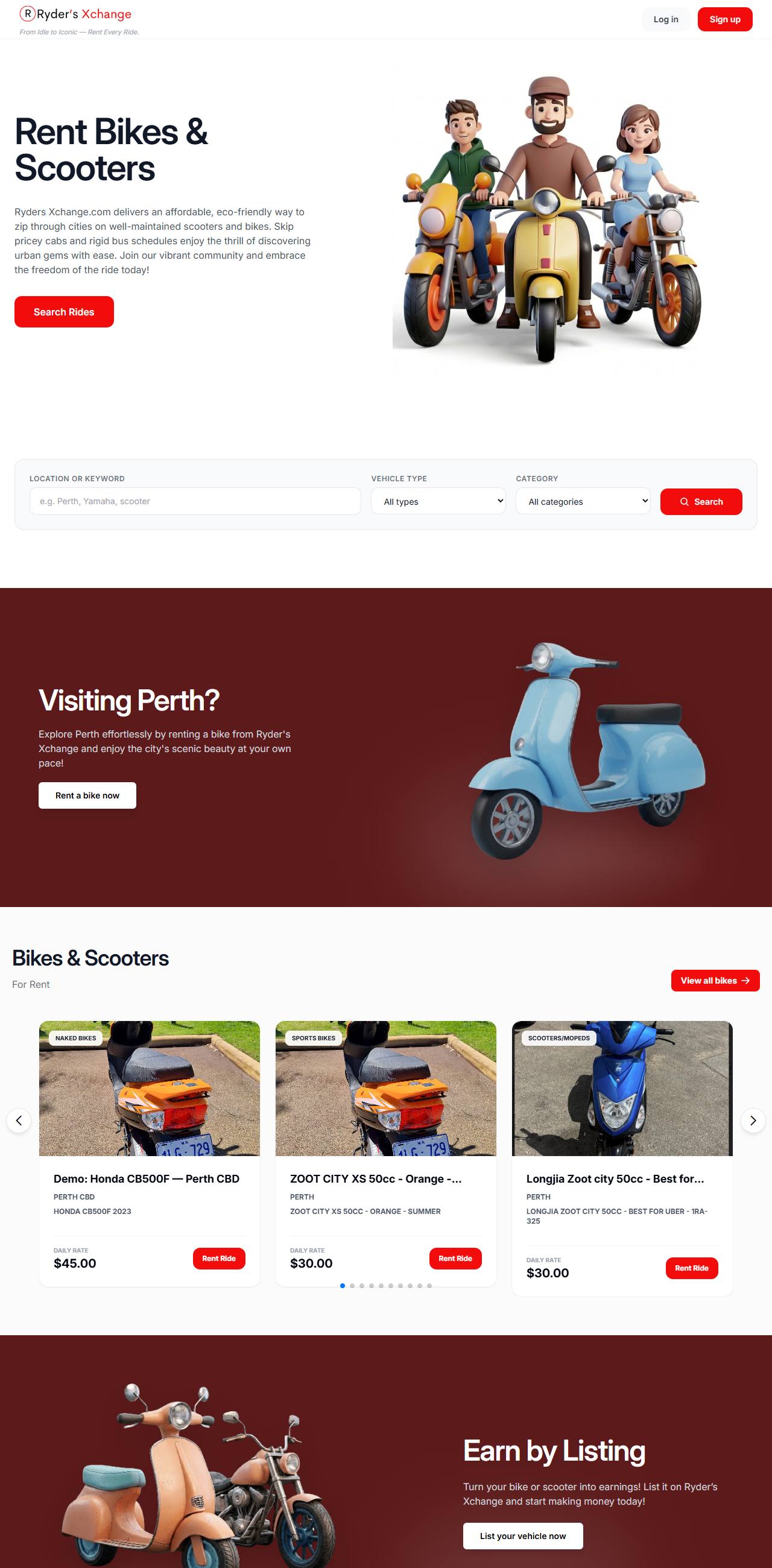 Home Search by location and type, or scroll on to the vehicles currently available.
To skip the search and see everything at once, choose View all bikes. Each card shows the
category, the vehicle name, its city, and the daily rate.
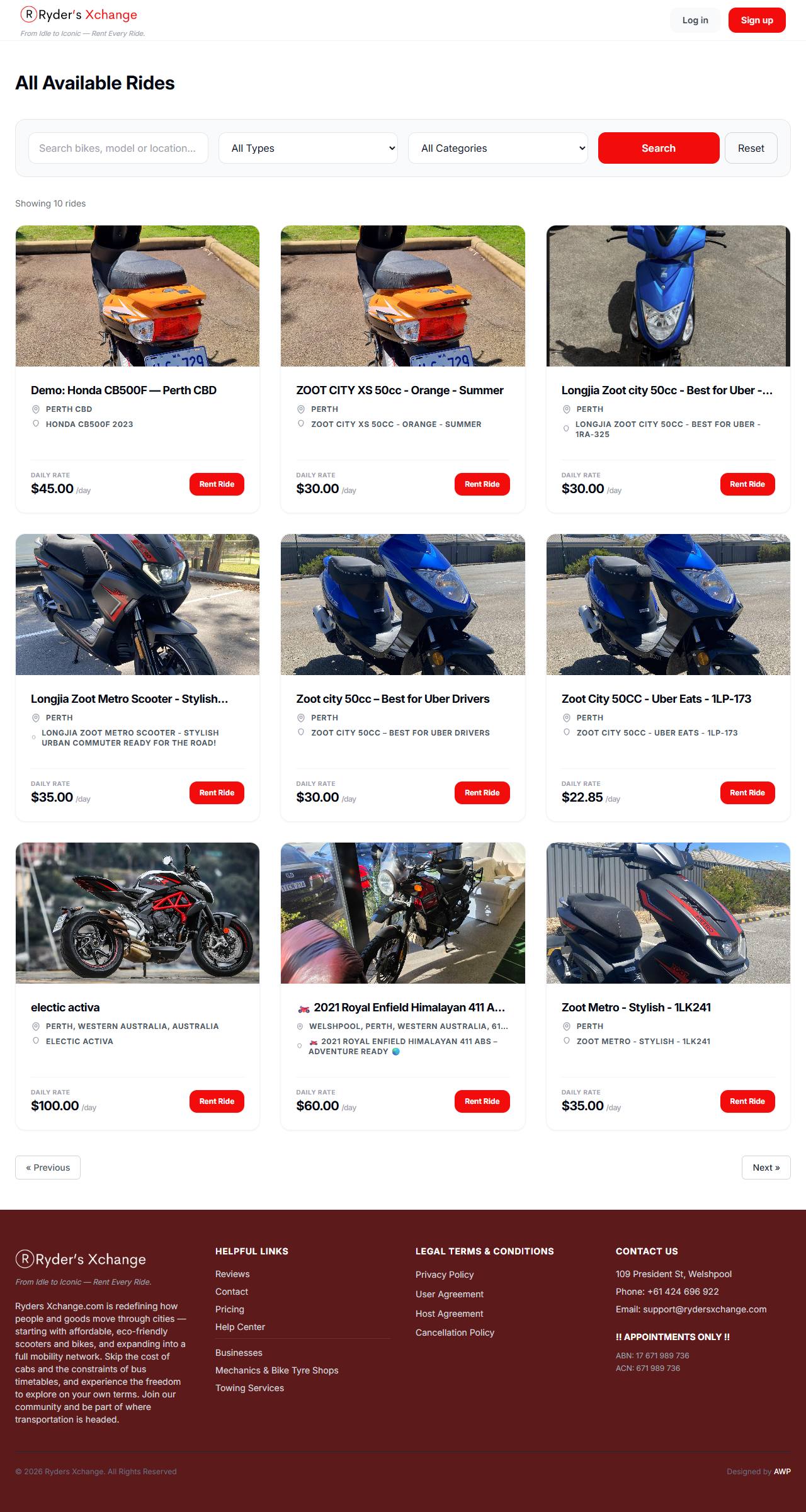 All bikes The full catalogue, with the daily rate on every card.
3
Read the listing
What the numbers on a vehicle page actually mean.
A listing page carries the photo gallery, the description, the pickup area, and an availability
calendar you can page through by month. Dates already taken by another booking are blocked out, and
so are any days the host has marked unavailable — those cannot be selected or booked.
Before you book, check these four things:
- Daily rate — and whether a separate weekend rate applies.
- Minimum days — some vehicles cannot be booked for a single day.
- Riders — most bikes take one. You cannot book for more than the vehicle seats.
- Security bond — a refundable amount held against damage. It is held,
not spent. See Book and pay.
- Extra services — optional add-ons such as delivery or gear, each with its own price.
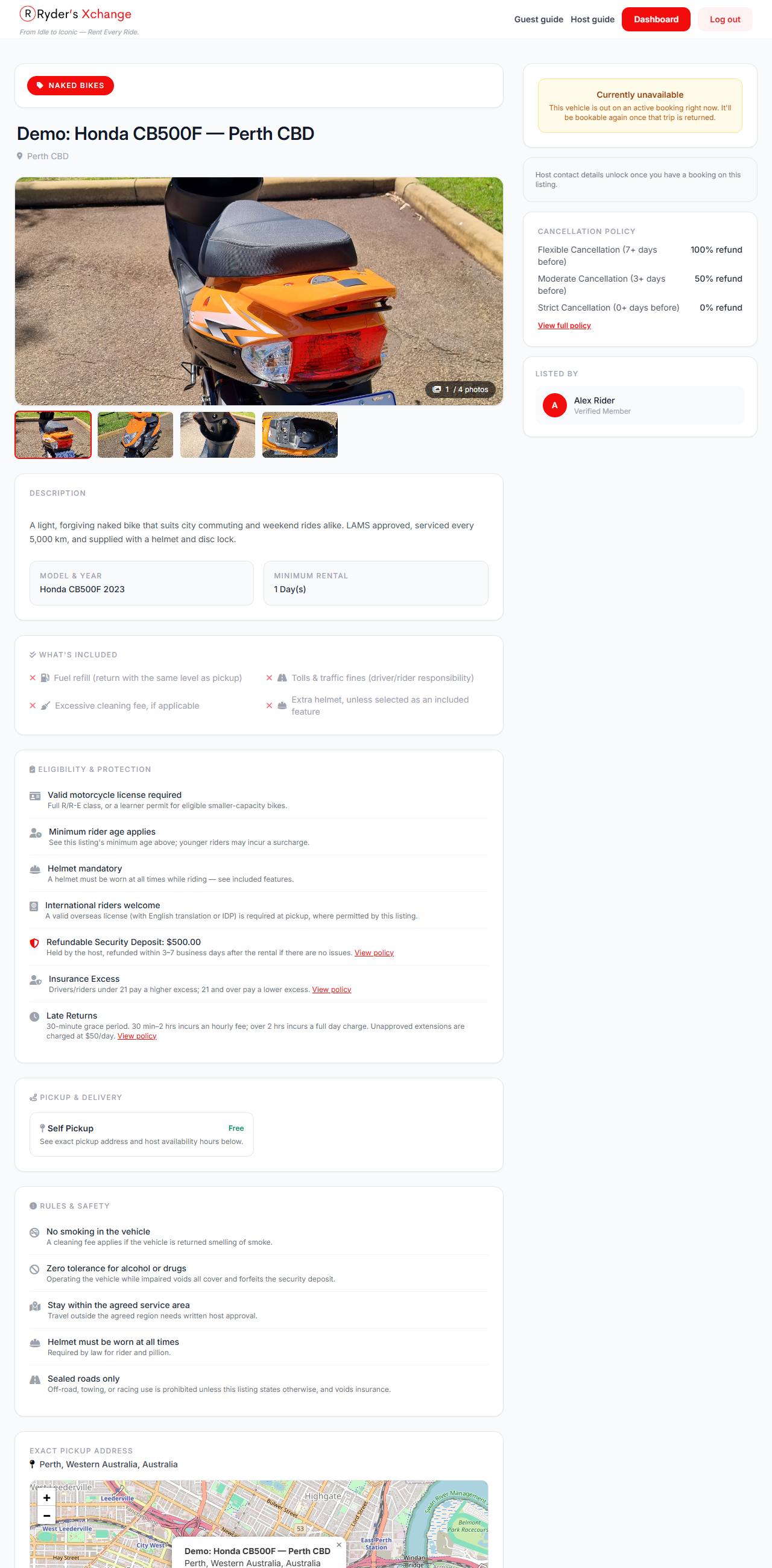 Listing Rate, availability and the booking panel sit together on the vehicle page.
Long trips can cost less per day. Hosts may set discounts that kick in automatically at 30,
60 and 90 days, and shorter-stay discounts at 3, 7 and 14 days. You do not need a code — if
your dates qualify, the reduced price is already in the total you are shown.
4
Ask the host a question
Optional, but worth doing before a first booking.
Every listing has a contact option that opens a message thread with that host, tied to that
vehicle. Use it to confirm pickup arrangements, whether a helmet is included, or anything the
description does not cover. Replies appear under Messages in your dashboard and you are
notified when the host answers.
5
Book and pay
The most important section in this guide — there are three separate amounts.
Booking is instant. There is no waiting for a host to accept: choose your dates, confirm the
details, and pay. The vehicle is yours for those dates as soon as the deposit clears.
- Pick your start and end dates on the listing, plus any extra services.
- Check the summary on the confirmation screen — dates, price breakdown, and any discount applied.
- Continue to Stripe to pay. Card details are entered on Stripe’s own secure page;
Ryder’s Xchange never sees or stores your card number.
- You are returned to a confirmation page and your booking appears under My bookings.
The three amounts, explained
This trips people up, so it is worth reading once carefully. A booking involves a deposit, a
balance, and a bond — and only the first is actually charged when you book.
| Amount | When | What happens |
|---|
| Deposit | At booking |
Charged to your card immediately. Usually 20% of the trip total — some hosts set it higher. |
| Balance | At pickup |
Authorised when you book, then captured when the host hands the vehicle over. This is the rest of the trip cost. |
| Security bond | Around pickup |
A hold, not a charge. Released after the vehicle comes back in good order. Only claimed against if there is damage or a breach. |
Why your bank may show more than you spent. An authorisation places a temporary hold on
funds without taking them. During a trip you may see both the balance hold and the bond hold
alongside the deposit you actually paid. Holds drop off once released — timing depends on
your bank, not on us.
6
Track your booking
Every booking moves along the same ladder of statuses.
Open My bookings to see all your trips, or the dashboard for a summary. The status tells you
exactly where a booking has got to:
Awaiting Payment
You started a booking but have not finished paying. It holds your dates for a short window, then expires.
Deposit Paid
Confirmed. Your deposit is captured and the dates are yours. The balance is still only authorised.
Ready for Pickup
The host has prepared the vehicle and it is waiting for you.
Active Rental
You have the vehicle. The balance has been charged at this point.
Returned
The host has logged the vehicle back in and is finalising the trip.
Completed
Trip closed, bond released. You can now leave a review.
Two statuses sit outside that ladder: Cancelled (see below) and
Under Dispute, which pauses a booking while an issue is resolved.
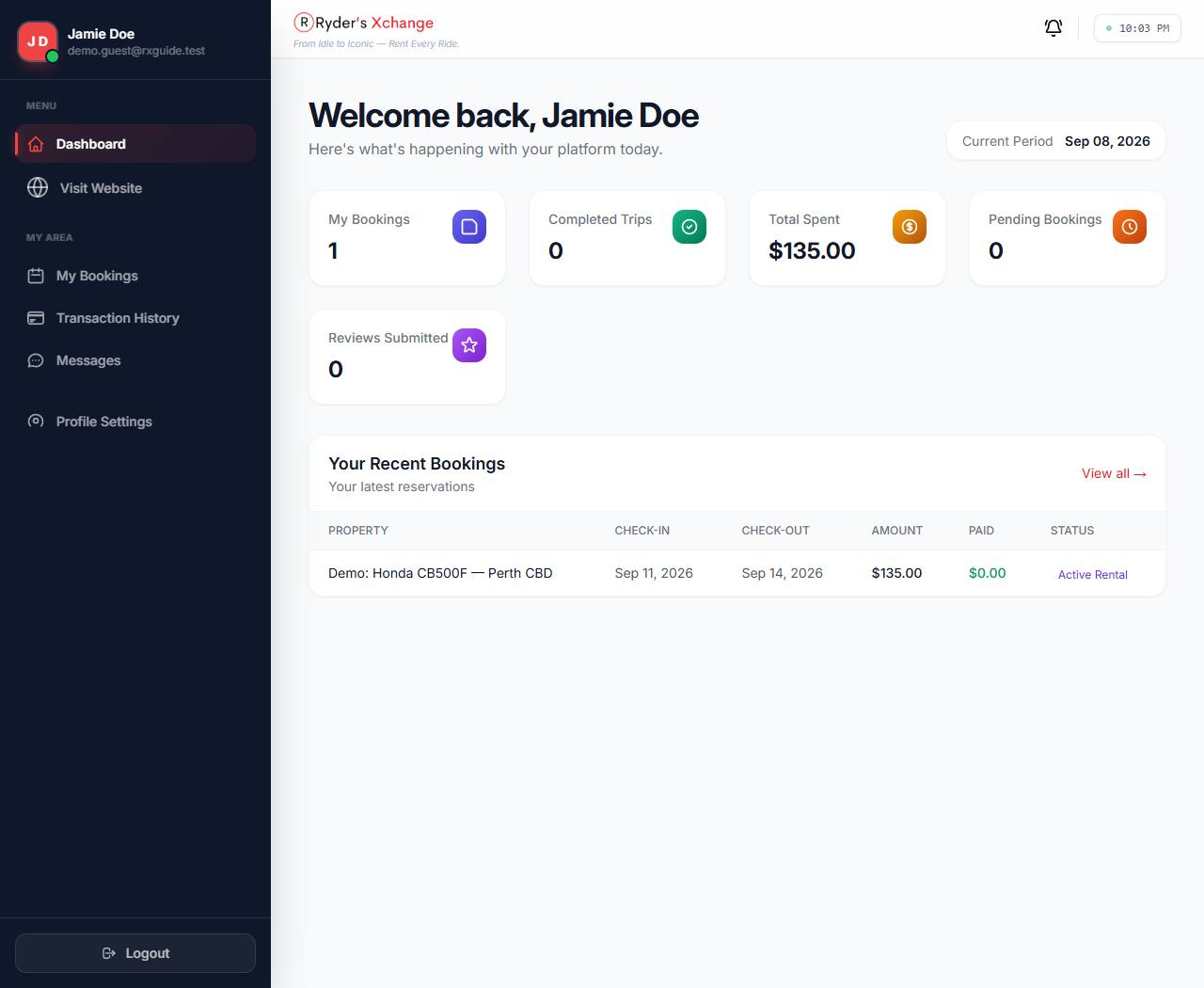 Dashboard Your trips, spend and recent bookings at a glance.
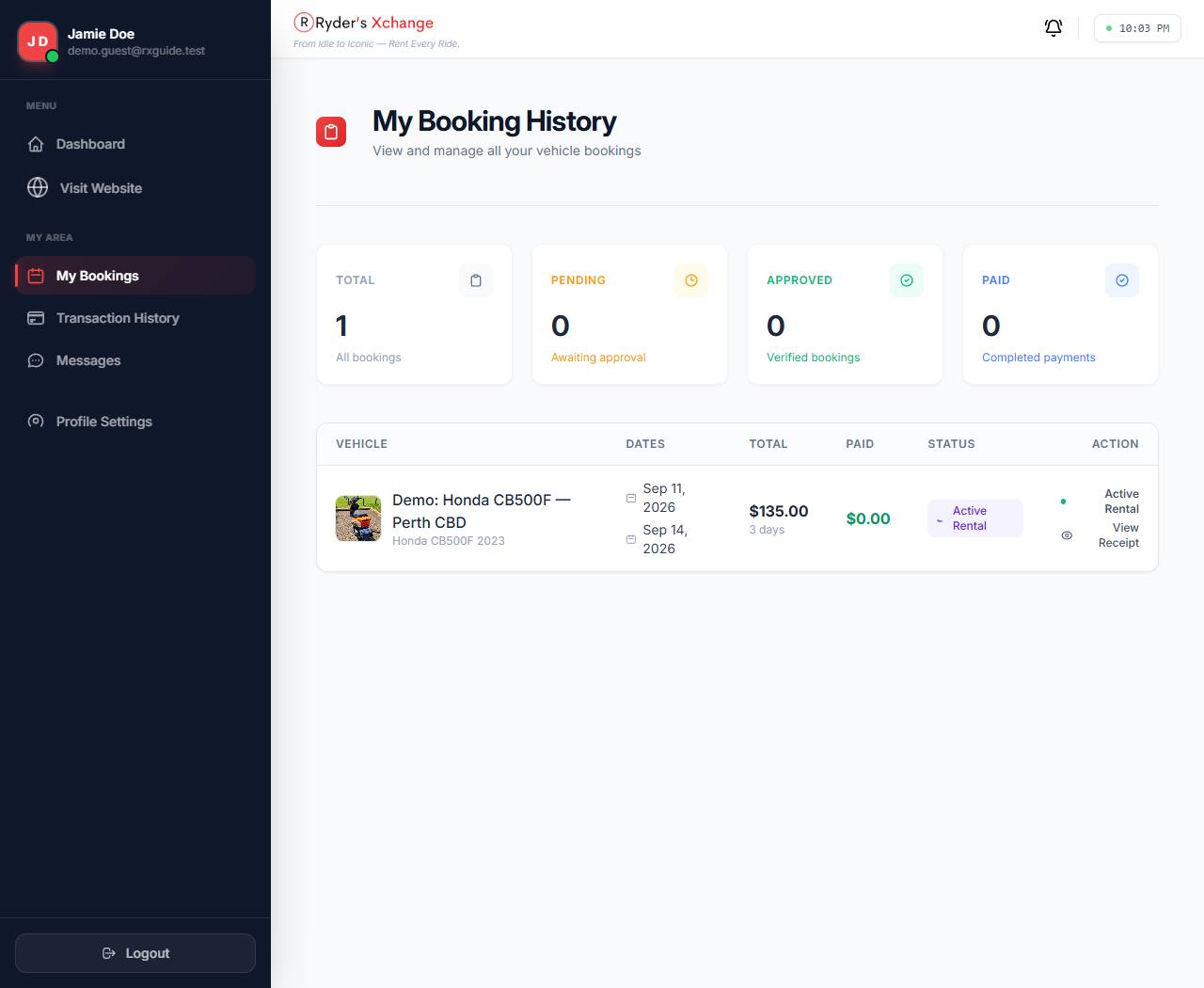 My bookings Every trip you have booked, with its current status.
7
Pick up and ride
What to bring, and how to extend if you want longer.
Bring your driver’s licence and the card you booked with — hosts check
both, and the card is needed for the bond. Arrange the exact time and place with your host through
Messages.
Extending a trip
Open the booking and use Extend this booking. Choose a new end date and select
Extend & Pay; the extra days are charged to your saved card straight away. You keep the
same vehicle and there is no new booking to make.
An extension is refused if the extra days run into dates the host has marked unavailable, or past
the end of the vehicle’s insurance cover. If that happens you will be told which date is the
problem — message the host, who may be able to free the dates up.
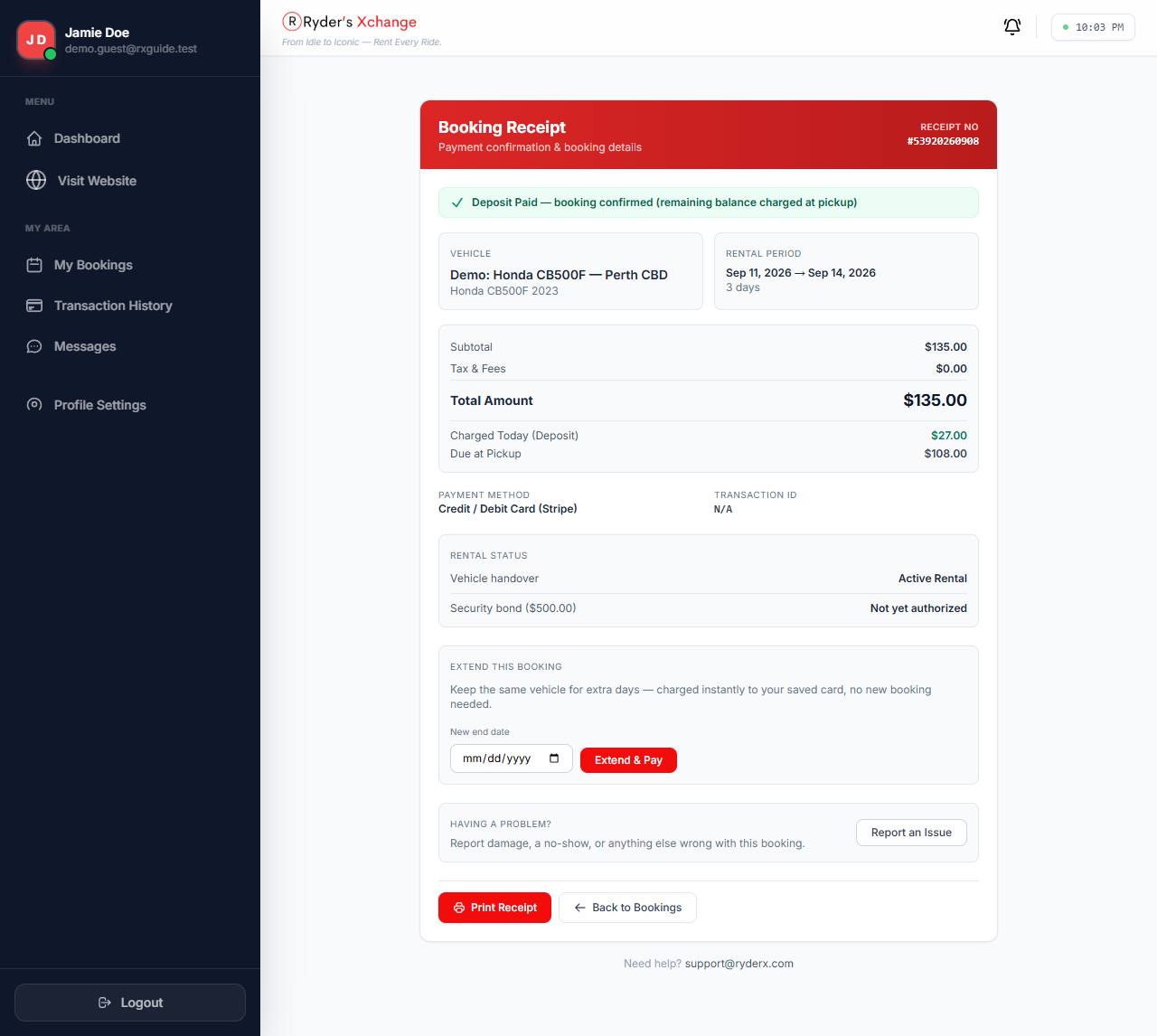 Booking details Receipt, what was charged today versus due at pickup, bond status, and the extend and report controls.
8
Return and review
Closing the trip and getting your bond back.
Return the vehicle as agreed. The host marks it returned and completes the booking, which moves it
to Completed and releases the security bond hold.
Once a trip is completed you can leave a review for the vehicle and host. Reviews are checked
before they appear publicly on the site.
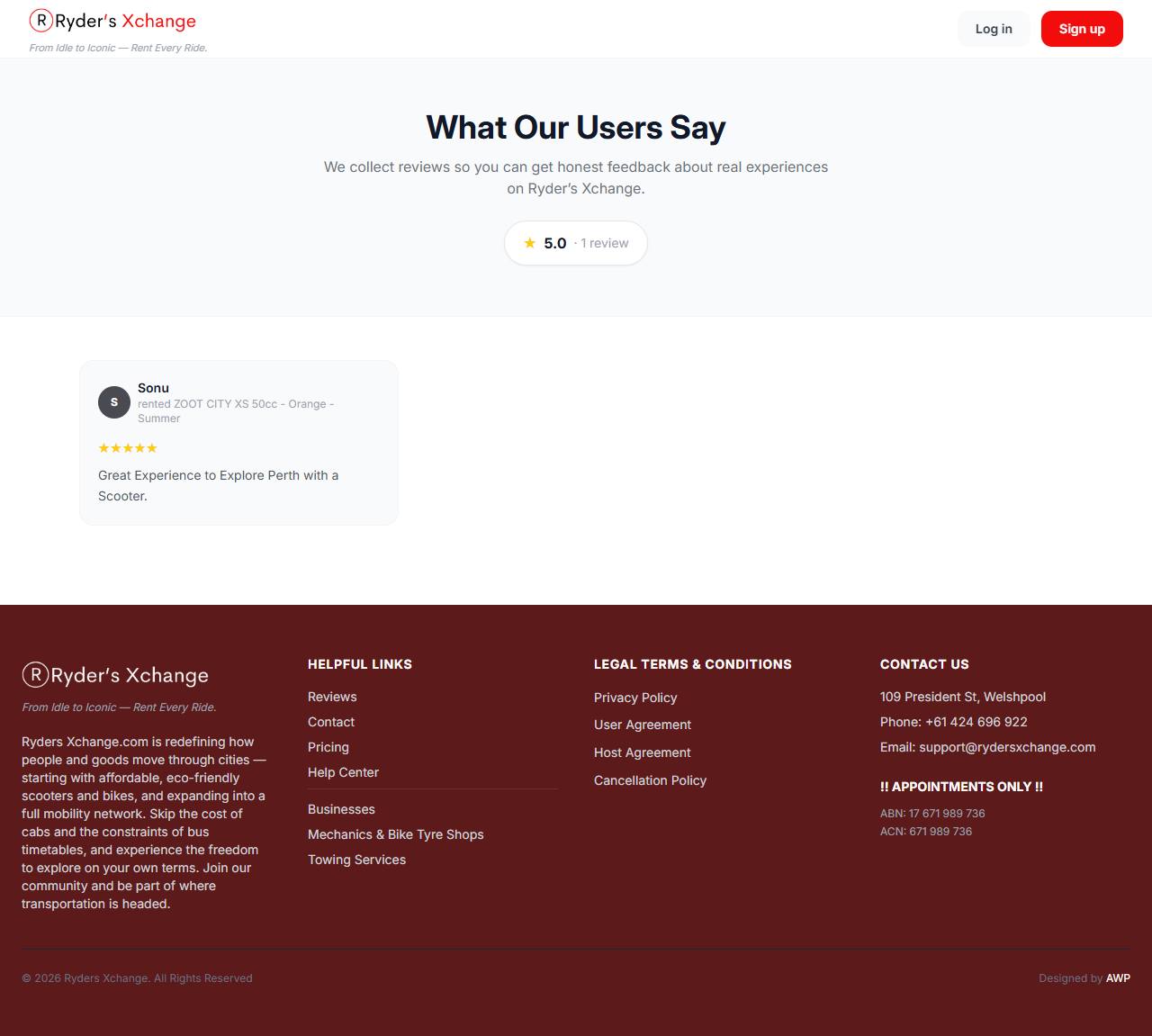 Reviews Published reviews from other renters, on the public site.
You can request a cancellation any time before the vehicle is handed over — that is, while the
booking is Awaiting Payment, Deposit Paid or Ready for Pickup. Once it becomes
an Active Rental, it is no longer a cancellation; raise it as a problem instead.
How much comes back depends on how far ahead you cancel:
| You cancel | Policy | Refund |
|---|
| 7 or more days before the start | Flexible | 100% |
| 3 to 6 days before | Moderate | 50% |
| Less than 3 days before | Strict | 0% |
A small platform fee is retained from refunded cancellations. The full terms are on the
Cancellation Policy page, and the figures there
always take precedence over this summary.
If the host cancels
The table above applies only when you cancel. If the host cancels — the vehicle
develops a fault, their insurance lapses, something else comes up — you are refunded in
full, whatever the timing. No cancellation fee is kept, the outstanding balance is never
charged, and the security bond hold is released. You will see “Full refund (cancelled by the
host)” on the notification, along with the reason the host gave.
If something goes wrong — the vehicle is not as described, the host does not show, or there is
damage to sort out — open the booking and choose Report an Issue. Give it a subject and
describe what happened.
Raising an issue puts the booking Under Dispute, which pauses the normal flow while an
administrator reviews it, including any claim against your security bond.
All conversations with hosts live under Messages. Each thread is tied to the vehicle it
started from, so you can see which booking a conversation belongs to. Unread replies are badged,
and new messages also appear under Notifications.
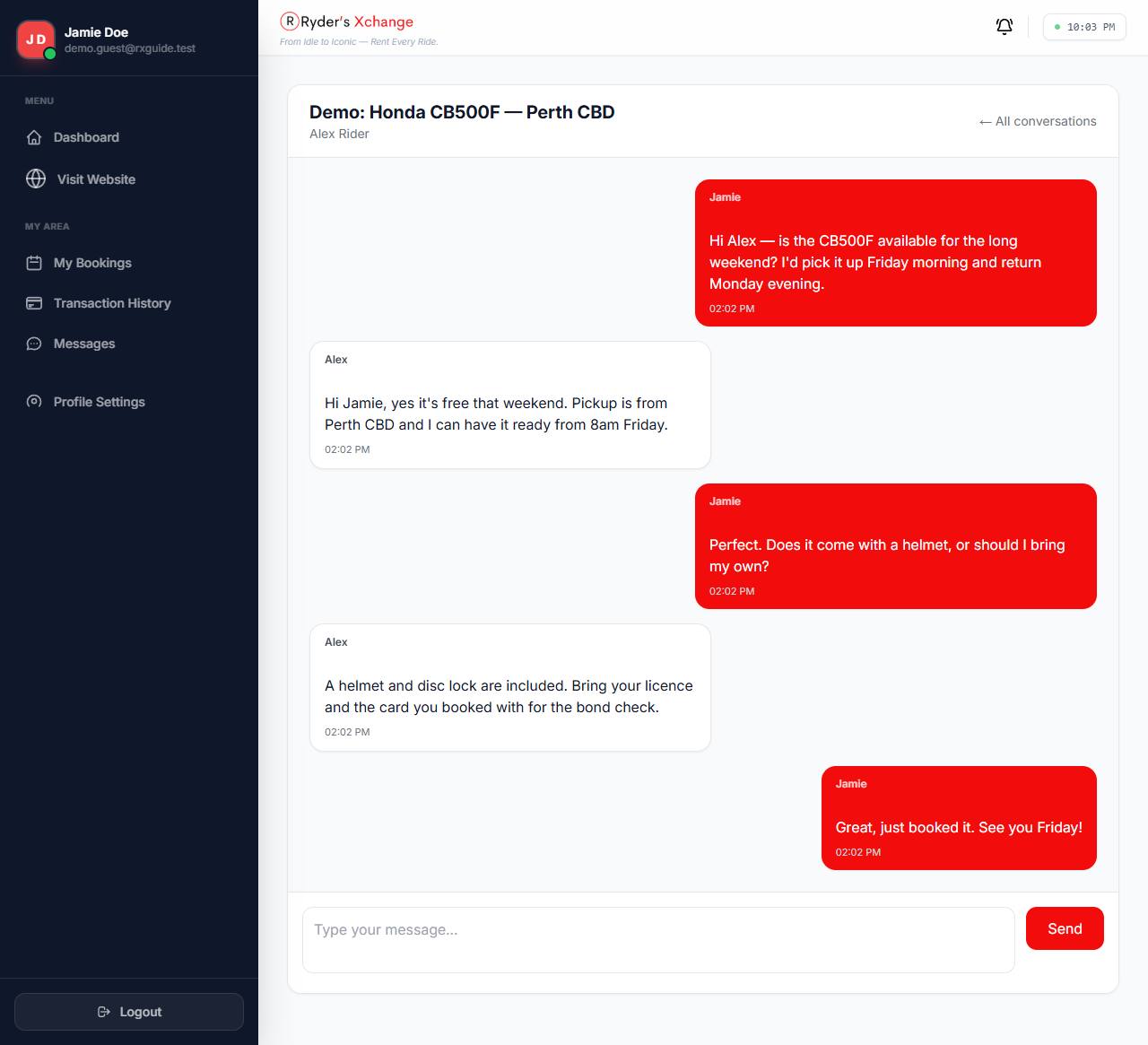 Message thread One conversation per vehicle, with the host’s replies in line.
Transaction history lists every payment on your account — deposits, balances,
extensions and refunds — with the booking each one belongs to.
For a single trip, open the booking and use Print Receipt. The receipt shows the subtotal,
taxes and fees, the total, what was charged at booking, what was due at pickup, and the receipt
number.
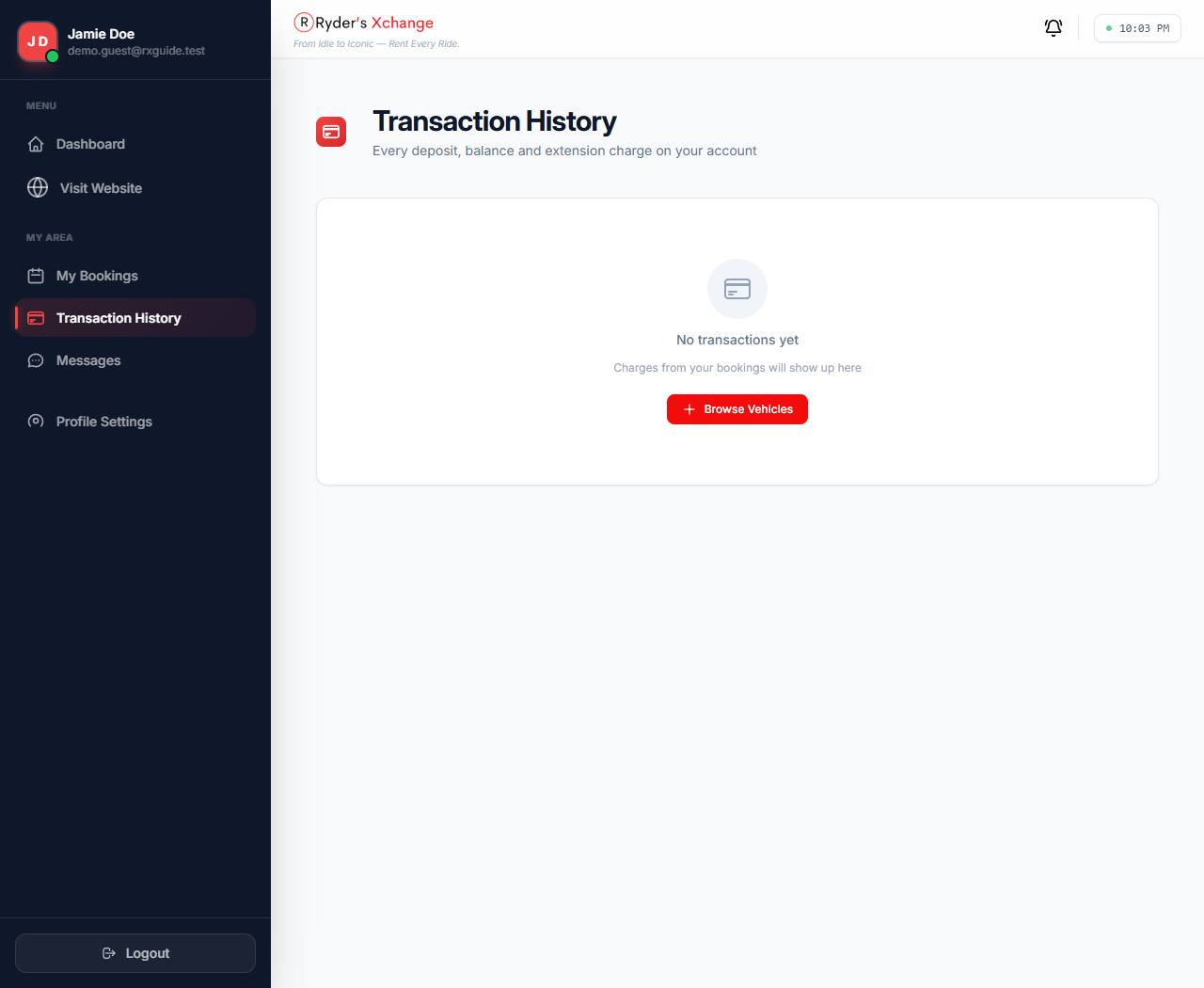 Transaction history Every payment and refund on your account.
Under Profile settings you can update your name, phone number and address details, upload a
profile photo, and change your password.
The same page is where you deactivate your account. For safety this needs a one-time code
sent to your email before it takes effect. A deactivated account can no longer sign in.
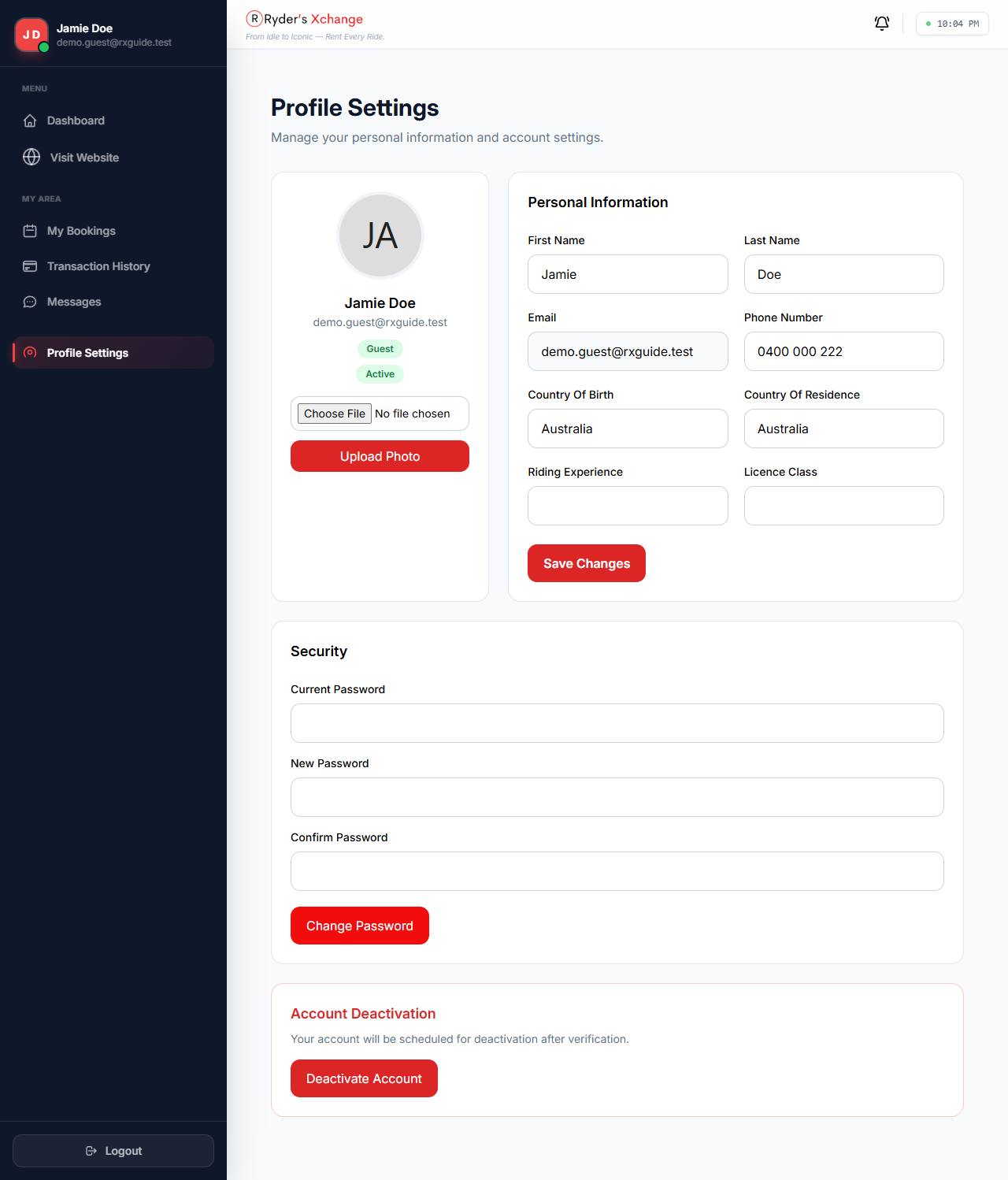 Profile settings Details, photo, password and account deactivation.
Mechanics, towing and partners
Beyond rentals, the site lists local services that are useful mid-trip. Each has its own directory,
and each entry has a page with contact details, opening hours and location.
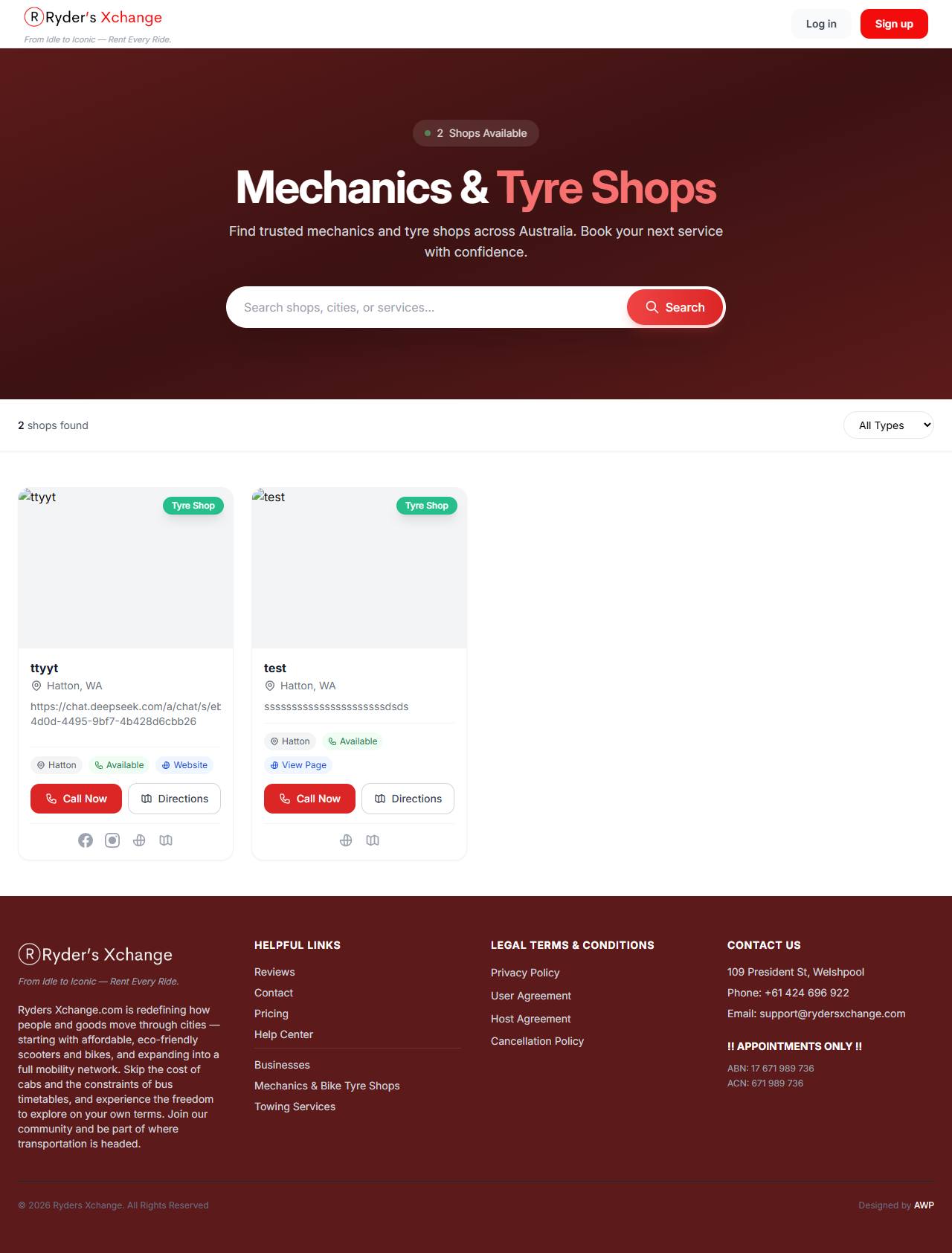 Mechanics & tyres One of three service directories on the site.
The Help Centre covers the common questions. For anything
about a specific booking, message the host first — most issues are quickest to solve
directly. For payments, bonds or disputes, use Report an Issue on the booking so support can
see the full record.
The Pricing page explains how rental prices are built up, and
the Terms and Conditions for Renters
and Cancellation Policy pages carry the binding
versions of the rules summarised here.
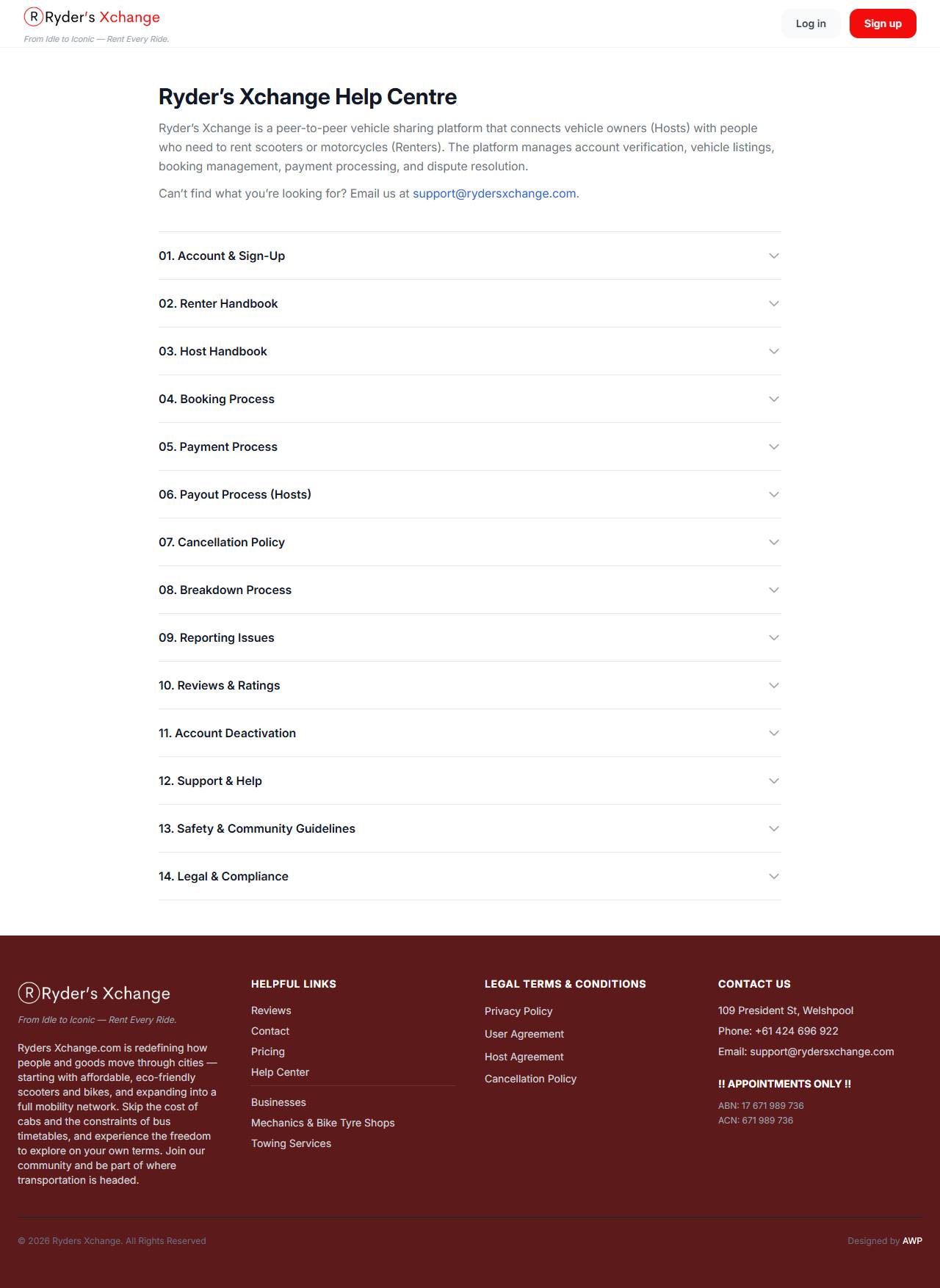 Help centre Answers grouped by topic.
Thinking of listing your own bike? The host guide covers listings, payouts and fees.
Read the host guide